April 16, 2010
Replace Windows Notepad with Notepad2
 As Windows Notepad is fast and small it is used extensively to store notes, contact nos., email id etc. However there are some draw backs of this notepad. They are as follows.
What are some of the things I do not like about Windows Notepad:
- Does not handle large text files well.
- Does not show line numbers next to each line
- Does not support advanced search and replace features.
- Does not open text files from other platforms in a readable manner.
- Can't change the background or foreground colors.
- No good indent support
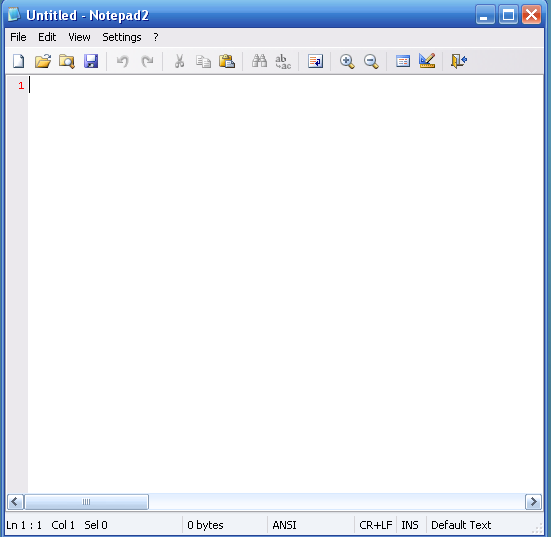
So what are our options? Replace it with a freeware notepad replacement. For this tutorial we will focus on Notepad2. Notepad2 is a freeware replacement to notepad with the following features:
- Customizable syntax highlighting
- HTML, XML, CSS, JavaScript, VBScript, ASP, PHP, CSS, Perl/CGI, C/C++, C#, Java, VB, Pascal, Assembler, SQL, Python, NSIS, INI, REG, INF, BAT, DIFF
- Drag & drop text editing inside and outside Notepad2
- Basic regular expression search and replace
- Useful word, line and block editing shortcuts
- Rectangular selection (Alt+Mouse)
- Brace matching, auto indent, long line marker, zoom functions
- Support for Unicode, UTF-8, Unix and Mac text files
- Open shell links
- Mostly adjustable
Providing a seamless replacement of notepad can be difficult, though, due to Windows XP's and Windows 2000/2003's Windows System File Protection (SFP) security feature. What this means is that when you replace a Windows system file with another file, SFP will automatically replace it with the original. I have though, provided some information below that should make it easier to do this replacement.
Replacing Notepad with Notepad2
The goal here is to make working with Notepad2 seem like you are working with the original Notepad by actually replacing notepad.exe with the notepad2 executable. To do this we will rename notepad2.exe to notepad.exe and copy it to the proper locations so as to overcome SFP as described above. Before we do anything, please enable the viewing of hidden system files.
Now we need to download Notepad2 from the following link:
Download NOTEPAD2
Save it to your hard drive and extract the files to C:\Notepad. Once extracted, rename notepad2.exe to notepad.exe. Now you should have a folder called C:\Notepad that contains the file notepad.exe.
When you have have followed the steps above you need to do the next series of steps. These steps should be done fairly quickly in order to beat SFP at its game. If you go too slow, then SFP may replace notepad.exe with the original Windows notepad. For those who do not want to deal with the instructions below, I have created two batch files that will do all these steps for you and almost always gets past the SFP problem. These batch files can be downloaded from the following link depending on your operating systems:
Notepad Replacement for XP
As long as you have notepad2.exe saved as C:\Notepad\notepad.exe, then the batch files above should be able to perform the replacement for you. After running the batch file you may get an alert from Windows saying one of your files (notepad.exe) was replaced with another file and asking if you want to restore it. You should press the Cancel button and the Yes button so that it does not replace the file. When done, feel free to delete your C:\notepad folder and hide your files again.
If instead you would like to do this manually, then below are the manual steps that the batch files does for you. These steps should be done in this exact order and as fast as possible to bypass SFP:
1. Make backup copies of notepad.exe in the following directories (Not necessary but good in case you want to roll back to the original notepad):
* C:\Windows\System32\notepad.exe
* C:\Windows\notepad.exe
* C:\Windows\system32\dllcache\notepad.exe
* C:\WINDOWS\ServicePackFiles\i386\notepad.exe
* C:\Windows\System32\dllcache\notepad.exe
2. Copy C:\Notepad\notepad.exe to all the directories listed above overwriting the notepad.exe that is there.
3. If Windows will issue an alert stating that the new notepad.exe is not the correct one and if you would like to correct. Press cancel at this prompt and then press Yes as we want to keep the new notepad replacement.
4. Delete the C:\notepad folder.
5. Hide your files again.
This will certainly work....
Give a Feedback after you have used it
November 14, 2009
You Tube : Warp

Move the mouse to hover the cursor over a particular circle and other related video burst out for your reference, with the first one in the center. Besides, a tag appears too- this time in a speech balloon- to show you what the video is all about. Click on any one of them for the video player to appear and watch your favorite video in a new mode. Similar videos are colour coded- the circles around them are of the same colour- and every time you click on a different kind of video, a dot of the same colour appears on the top left corner of the screen. Videos you have watched are connected by lines as a quick review of your viewing history.
Do leave your comment if you like this post....
August 12, 2009
Save Your e-Mail Accounts From Being Hacked

Today in this post I’ll you all know how to prevent Email accounts from being hacked. Nowadays it’s a common complain that “my account has been hacked, what should I do?” The single answer to these two questions is “be careful from getting befooled” . It is neither easy to hack an email nor difficult to protect an email account from being hacked.
What are the reasons many people lose their accounts?
The answer is very straightforward. They don’t know how to protect themselves from being hacked! In fact most of the people who loose their email accounts are not the victims of hacking but the victims of Trapping. They loose their passwords not because they are hacked by some expert hackers but they are fooled to such an extent that they themselves give away their password.
Its mentioned below about some of the most commonly used online scams which fool people and make them loose their passwords. Solutions are mentioned too.
1. BY USING KEYLOGGERS
The other commonly used method to steal password is by using a Keylogger. A Keylogger is nothing but a spyware. If you just access your email account from a computer installed with keylogger, you definitely loose your password. This is because the keylogger records each and every keystroke that you type.
Solution:
Protecting yourselves from a keylogger scam is very simple. Just install a good anti-spyware program and update it regularly. This keeps your PC secure from a keylogger. Also there is a program called Anti-keylogger which is specially designed to detect and remove keyloggers. You can use this program to detect some stealth keyloggers which remain undetected by many anti-spyware programs.
2. WEBSITE SPOOFING
Website spoofing is the act of creating a website, with the intention of misleading the readers. The website will be created by a different person especially for the purposes of cheating. Normally, the website will adopt the design of the target website and sometimes has a similar URL.
For example a Spoofed Website of gmail.com appears exactly same as Gmail Website. So most of the people believe that it is the original site and loose their passwords. The main intention of spoofed websites is to fool users and take away their passwords. For this,the spoofed sites offer fake login pages. These fake login pages resemble the original login pages of sites like Yahoo,Gmail,Orkut etc. Since it resemble’s the original login page people believe that it is true and give away their username and passwords by trying to login to their accounts.
Solution:
• Always type the URL of the site in the address bar to get into the site.Never click on the hyperlink to enter the site.
• Never try to login/access your email account from the sites other than the original site.
3. ACCESSING YOUR EMAIL ACCOUNT FROM CYBER CAFES
If you access your email account from cyber cafes, then definitely you are under the risk of loosing your password. In fact many people loose their email account in cyber cafes. For the owner of the cyber cafe it’s just a cakewalk to steal your password. For this he just need’s to install a keylogger on his computers. So when you login to your email account from this PC, you give away your password to the cafe owner. Also there are many Remote Administration Tools (RATs) which can be used to monitor your browsing activities in real time.
This doesn’t mean that you should never use cyber cafes for browsing the internet. I know, not all the cyber cafe owners will be so wicked but it is recommended not to use cafes for accessing confidential information. If it comes to the matter of security never trust anyone, not even your friend. I always use my own PC to login to my accounts to ensure safety.
Please don’t forget to comment and give your feedback after going through this post…
July 4, 2009
View your saved passwords for any page.

To view the password associated with any website in Mozilla browser you are just required to follow some steps. It’s really an easy job that any novice can follow. I have mentioned some steps below. Just follow it and you can access the saved password of an associated website.
Steps:
· Go to login page
· Right click and select “view page info” from the menu
· A window will pop-up, select “Security” tab.
· Select “view save passwords”
· A window will pop-up showing usernames associated with some sites
· Then click “view password” to access the passwords corresponding to a site

If you want to view all of your saved usernames and passwords just follow the steps below
* open Options under the Tools menu
* select the Security tab.
* Click Saved Passwords to open a list of every site you've ever saved a password for
* Again, click View Passwords and the list will display all of your passwords.

You can't print this list, but you can just as easily take screenshots if you want to store your passwords for safekeeping. But it’s a big security hole. A question arises, Knowing how easy it is for anyone with access to your PC to view all your passwords, passwords can be hacked? To protect passwords from unauthorized access , In the Options | Security tab, click Use a master password and enter a password. Now this password will have to be entered any time you or anyone else tries to view saved passwords. You'll be asked to enter your master password every time you open Firefox; without it, Firefox won't automatically enter saved passwords for you
July 3, 2009
Shareholic: Share, Bookmark, eMail Quickly

Had it been a way which would enable the reader to directly share the page to his friends without navigating to other pages. If it so then there is less chance of losing concentration.
Don't be disappointed, I have a great ad-on to share with the Mozilla users

This ad on is called "SHAREHOLIC".
Now, through this you can share a certain page directly without moving here and there.
Shareholic gets set in your browser from where you can share any article by a single click
Its also available through right click. Just its required a right click and you are not far from sharing a article..

Visit the site Shareholic.com
Technorati Tags: mozilla,ad-on,shareholic,share,bookmark
July 1, 2009
Finzan: Safe Browsing

Finjan SecureBrowsing provides safety ratings of URLs showing in your browser.
Utilizing inventive security technologies, proven in large enterprise environments, it helps keep safe from online scams as you search and browse the web.
With all of the viruses and spyware on the Internet, security is a major issue.
You should already have up-to-date antivirus/spyware running on your computer but even at that you seem to pick up some junk on your travels.
Twitter a social networking site best for micro-blogging is a place which is most prone to spam and virus containing links. Twitter users unknowingly click the link and fall prey to the spam.
Finzan, which can easily be installed on Mozilla and on IE and gives a brief summary of site’s safety-status.

Provides the highest rate of malicious code detection:
* Scans the current form of a page as it available on the Web in real-time.
* Detects malicious content based on code analysis
* Provides the most accurate page safety rating based on the actual page content
Privacy:
* Doesn’t track each and every URL visited.
* Doesn’t need identification details.
* Doesn’t install additional programs.
June 28, 2009
See you Tube Video Without Distraction
YouTube, the world’s most popular video sharing platform is visited by millions of video fans daily. But, some of you don’t really like the irritating ads, the absurd comments and other crap which are worthless to you. To watch videos with no distractions, try Quietube.
When you’re on any YouTube page, simply click on it and you’ll be directed to a page on Quietube. With this useful tool, you can watch all your videos in peace in the future!

This is really a great tool. After you have accessed the site of Quietube you are just required to drag the application on to your tool bar. Once its installed on your tool bar of your one is just one click far to witness a You Tube video without distraction. So visit the site and I hope you will enjoy this application
So finally VIsit Quietube
May 28, 2009
Introduction to Internet
All computers on the Internet communicate with one another using the Transmission Control Protocol/Internet Protocol suite, abbreviated to TCP/IP. Computers on the Internet use a client/server architecture. This means that the remote server machine provides files and services to the user's local client machine. Software can be installed on a client computer to take advantage of the latest access technology.
An Internet user has access to a wide variety of services: electronic mail, file transfer, vast information resources, interest group membership, interactive collaboration, multimedia displays, real-time broadcasting, shopping opportunities, breaking news, and much more.
The Internet consists primarily of a variety of access protocols. Many of these protocols feature programs that allow users to search for and retrieve material made available by the protocol.
WORLD WIDE WEB
The operation of the Web relies primarily on hypertext as its means of information retrieval. HyperText is a document containing words that connect to other documents. A single hypertext document can contain links to many documents. In the context of the Web, words or graphics may serve as links to other documents, images, video, and sound. Overall, the Web contains a complex virtual web of connections among a vast number of documents, graphics, videos, and sounds.
Producing hypertext for the Web is accomplished by creating documents with a language called HyperText Markup Language, or HTML. With HTML, tags are placed within the text to accomplish document formatting, visual features such as font size, italics and bold, and the creation of hypertext links. Graphics and multimedia may also be incorporated into an HTML document. The World Wide Web Consortium (W3C), led by Web founder Tim Berners-Lee, coordinates the efforts of standardizing HTML. The W3C now calls the language XHTML and considers it to be an application of the XML language standard.
The World Wide Web consists of files, called pages or home pages, containing links to documents and resources throughout the Internet.
The Web provides a vast array of experiences including multimedia presentations, real-time collaboration, interactive pages, radio and television broadcasts, and the automatic "push" of information to a client computer. Programming languages such as Java, JavaScript, Visual Basic, Cold Fusion and XML are extending the capabilities of the Web. A growing amount of information on the Web is served dynamically from content stored in databases. For more complete information about the World Wide Web, see Understanding The World Wide Web.
A powerful aspect of e-mail is the option to send electronic files to a person's e-mail address. Non-ASCII files, known as binary files, may be attached to e-mail messages. These files are referred to as MIME attachments.MIME stands for Multimedia Internet Mail Extension, and was developed to help e-mail software handle a variety of file types. For example, a document created in Microsoft Word can be attached to an e-mail message and retrieved by the recipient with the appropriate e-mail program. Many e-mail programs, including Eudora, Netscape Messenger, and Microsoft Outlook, offer the ability to read files written in HTML, which is itself a MIME type.
CHAT & INSTANT MESSENGING
Internet Relay Chat (IRC) is a service through which participants can communicate to each other on hundreds of channels. These channels are usually based on specific topics. While many topics are frivolous, substantive conversations are also taking place. To access IRC, you must use an IRC software program.
A variation of chat is the phenomenon of instant messenging. With instant messenging, a user on the Web can contact another user currently logged in and type a conversation. Most famous is America Online's Instant Messenger. ICQ, MSN and Yahoo are other commonly-used chat programs.
Other types of real-time communication are addressed in the tutorial Understanding the World Wide Web.
January 18, 2009
Increasing Network Browsing Speed
Although this problem is a complex one, the solution is very simple. Instead of having to wait for the remote scheduled tasks, which is useless information to anyone who is not a system administrator remotely configuring scheduled tasks, you can disable this feature.
In order to do this, you will have to hack the System Registry and delete a reference to a key so that this feature will not be loaded. Navigate through the foloowing Path:
HKEY_LOCAL_MACHINE>Software>Microsoft>CurrentVersion>Explorer>RemoteComputer key>NameSpace key
Next, you will want to modify the remote computer settings, so expand the RemoteComputer key and then expand the NameSpace key to show all of the features that are enabled when you browse to a remote computer.
In the NameSpace folder you will find two entries. One is "{2227A280-3AEA-1069-A2DE-08002B30309D}" which tells Explorer to show printers shared on the remote machine. The other,
Tip:
If you have no use for viewing remote shared printers and are really only interested in shared files, consider deleting the printers key, "{2227A280-3AEA-1069-A2DE-08002B30309D}", as well. This will also boost your browsing speed.
Once you have deleted the key, you just need to restart and the changes will be in effect. Now your network computer browsing will be without needless delays.
Introduction
January 17, 2009
Moving Bookmarks In Between Different Browsers
Well, Transmute is FREE small portable program which lets you export bookmarks into another browser effortlessly.
Transmute lets you export you bookmarks in between the browsers like Safari, Firefox2+ ,Firefox3+,Internet Explorer, Chromium, Google Chrome, Sea Monkey, flock etc.
Let’s see how can you use transmute utility to export bookmarks in between various browsers.
Solution:
The process of using transmute is very simple. Get transmute downloaded here, after that one is just needed to run transmute and then select the source browser from where you want to import the bookmarks and then select the target browser where you want to export the bookmarks and then select the export button.
*Make sure that both the browsers source and the target browser are closed at the point when you run transmute.
We hope you like this small program which will help to exporting bookmarks in between the browser installed on your computer seamlessly.
December 11, 2008
Password Protection

You would never consider setting the combination of your family safe to something as simple as, "1 … 2 … 3." But even though computer and internet passwords provide access to far more money than your home safe, many people set themselves up to get hacked when they select passwords that are far too simple or that are changed too infrequently.
1. Keep hackers guessing
• Use strong passwords of at least 7 characters long, with a mix lower and uppercase letters and digits. Example: AxV37TtP0.
• Never use common words or names in your password. In fact, making up new words is an effective way to keep hackers from guessing your password.
• Change your passwords regularly. No matter how closely you guard your password, it will eventually become compromised. By changing your password regularly, however, you can ensure that by the time a hacker gets a hold of your password you've already changed it.
2. Use a variety of different passwords
It is human nature for people to feel comfortable with a particular username and password, and to keep using it over and over. Because hackers know this, they often target less secured sites in order to harvest usernames and passwords, with the knowledge that those same username and password combinations are likely to work at more secured (and more valuable) sites such as online banks.
Suggestions:
• Use different passwords and usernames for all web-based applications. If you are overwhelmed by the thought of having to remember a dozen different passwords, come up with a system for numerically organizing passwords so that even if you forget a password you'll be able to quickly guess it later by comparing it with those of your passwords that you do remember.
• Be creative with your usernames. Almost everyone uses some combination of first initial/ last name, so a hacker can simply presume that in any database there is a JSmith, a JSmith1, and so on. Make sure that your username isn't something that can be easily guessed.
3. Password protect your computer login access
While many people are willing to set up complex passwords for online services, they often resist doing so to protect physical access to their computer. The truth is, however, almost every computer is in danger of being accessed by individuals who don't have authorization to do so. From your own children, to the maid that cleans your house while you're at work, the person accessing your computer does not have to intend to harm you or your computer to accidentally do so, so everyone needs a strong password for physical computer access.
Suggestions:
• Not only add a password to your personal profile, but also to any guest accounts. Again, you aren't just concerned with someone maliciously attempting to harm your computer, often the biggest danger is from inexperienced internet users who are just curious.
• Use a screen saver with password protection. It is all well and good to password protect your windows logins, but if you're like most people, your computer is often left idle rather than being shut down immediately after you're done using it. So eliminate this vulnerability by setting up a password protected screen saver to start up if your computer is left in idle mode for more than a few minutes.
• Consider creating a desktop shortcut to lock down your computer if you're the type of person who will forget to secure things if it isn't simple and convenient to do so.
Safely Emailing

Email was originally designed to enable academics and scientists to communicate with one another. And because it was created with the thought that only trusted individuals would send files back and forth, email's security weaknesses were never a concern while the technology was being developed. Unfortunately, spammers and hackers came along with the popularity of email, but by then the technology was far too popular to redesign. As a result of its inherent security weaknesses, it is very important to take the necessary steps to strengthen your email security through add-on protections and by tailoring the way you use your email.
1. Use a first-rate email client
Just because all email clients deliver your email, does not mean they are equally effective when it comes to PC security. An effective email client should provide your computer with another layer of protection by effectively filtering out all the unwanted email messages bound for your inbox, as well as providing some basic email attachment virus scanning.
Suggestions:
• Google Mail (GMail) is one of the best web-based email clients, providing you with top of the line spam filtering that will keep your inbox free of almost all unwanted messages. Unfortunately, however, its virus scanning capabilities leave a lot to be desired, so you'll want to manually scan all email attachments using your personal virus scanner before you download.
• Mozilla's Thunderbird is a highly regarded, award winning, spam-fighting standalone email client. Thunderbird has to be configured for a POP or IMAP based email server just like Microsoft Outlook. But once you setup Thunderbird, you'll be well on your way to keeping your inbox free of spam.
2. Handle email attachments carefully
When you download an attachment, your computer presumes that you know what you're doing. Consequently, your firewall won't check the attachment to make sure that its safe, which leaves just a cursory scan by your email client as the only protection between an attachment and your computer. Given the low level of security surrounding attachments, it's no surprise that hackers often try to hide their harmful programs in spam email attachments. In fact, an estimated 90% of viruses enter computers this way. Given those stats, it is important to always follow best practices when handling all email attachments in your Inbox.
Suggestions:
• Do not open attachments from strangers, or even from well-known companies, no matter how official or familiar the email appears to be. Spammers often use very creative techniques to make their emails and their attachments look legitimate, and they are getting increasingly good at it. So simply closely examining emails with attachments before downloading is no longer a sufficient security strategy. Instead, you should adopt a strict no attachment policy from strangers or companies, and go to the company website directly to get the needed information instead.
• If a friend's computer is infected, it's possible that you'll receive email with virus-infected attachments that appears to be (or actually is) from them. Thus, a familiar sender alone is not enough to ensure that an attachment is safe. If you're not expecting an attachment, call, IM or VoIP the person to verify that they intended to send it before you open the attachment.
3. Do not click on email links haphazardly
A common phishing scam technique is to imbed a link in an authentic-looking but fake email message which leads to a malicious website. These email messages usually try to trick people into clicking on the link and giving up personal information in order to supposedly "confirm their financial information" or even just to "unsubscribe" from a newsletter they never signed up for in the first place. Another variant on this same scheme simply installs a virus on your computer after you click on the link via a technique called drive-by downloading. But whatever the specific harm inflicted, the point is simply that embedded links in emails can pose an enormous PC security risk.
Suggestions:
• Do not click on links in questionable emails. Reputable companies might send an email saying there's a problem with your account, but they'll never include a link "for your convenience" proclaiming to have lost all of your data.
• Even if you personally follow email best practices, family members using shared email accounts may still unwittingly click on malicious links and infect your computer. Consequently, you may want to disable "HTML email" so that embedded links in emails no longer function, as well as educate family members on some of the most common techniques scammers and hackers use.
4. Set up email filters
Reputable Internet Service Providers (ISP's) are all currently developing effective spam filtering in order to minimize the amount of spam that reaches your email client. And just as that extra level of filtering helps to reduce the levels of spam that reach your inbox, so too you can add your own supplemental filtering level by setting up your own personal email filters. While your ISP filter and email client filter will together dramatically limit the amount of spam that gets through, it is only by adding a manual filtering component through custom filtering that you can achieve near zero spam levels.
Suggestions:
• Start with an effective email client and add custom filters. GMail allows you to create a number of email aliases that all connect to your existing email address, which will allow you to divide up incoming emails into folders dependent upon the particular variant the email was sent to. So, whenever you sign up for a new newsletter, you can use a new variant on the email. If a newsletter ends up selling your name to spammers, you can simply block that email variant and voila, you have stopped the flow of spam and identified which newsletter is secretly selling readers' contact information to the highest bidder.
• If you don't have access to email aliases, you can accomplish exactly the same thing by setting up multiple free email accounts and designating one specifically for newsletter signups. If you don't want to keep up with all those email accounts, you can even use a self-destructing email account such as 10minutemail which will allow you to confirm your subscription to a newsletter or service, but which won't put your real email in danger of picking up spam.
Internet Security
• The first thing you should do to protect yourself from online security threats is to get a good antivirus program, as well as anti spyware software, and a personal firewall. These products act as your personal watchdog; constantly scanning your system for known patterns of suspicious file activity and stopping the “bad stuff” before it has a chance to do any damage. The easiest and most affordable thing to do is to purchase an internet security suite. This is a “bundled” package of specialized computer security software that is designed to work together to provide a “blanket of protection”.
Keep Your Operating System and all Applications Up to Date
• Use Microsoft Windows "Automatic Update Service" to ensure you have the latest hot fixes, security patches, and service packs. These updates are designed to counter the effects of the latest security threats by closing newly discovered security "holes" and adding protective enhancements to your operating system. Windows Update will also keep your Internet Explorer web browser up to date.
• It's important to keep all program applications such as Microsoft Office, Adobe Reader, Real Player, Flash Player, iTunes, etc... up to date as well. Hackers and cyber-criminals often find and exploit security holes in applications, and use this as a way to get into your computer. Go to the developers website on a regular basis and download the latest updates to the software you are running. Most new versions of software include an "auto update" feature that you can turn on to make this an automatic process.
Never Download Free Screensavers, Games, or Other "Freeware" Applications
• Free software is notorious for carrying invasive adware and dangerous spyware that can cripple your system or steal personal information. If you must download free software, be sure to read the EULA (user license agreement) carefully. This will often tell you that by installing the software, you are agreeing to install other applications that deliver advertising (this is adware). If you don't want this additional advertising software installed, don't install the software. Adware and spyware is often difficult to remove, so be careful what you download and install.
Never Open Email From People You Don't Know
• Un-requested, unsolicited bulk email is called Spam, and usually contains advertisements for illegal or unsavory products/services. A lot of spam now contains dangerous phishing scams, which tricks you into going to fraudulent websites where spyware might be installed without your knowledge. Many links in phishing emails also take you to fraudulent sites that are "carbon copies" of legitimate financial institutions. Attempting to log on to these sites will send your credentials to the spammer, who will quickly wipe out your account.
Backup Your Data on a Regular Basis
• Hard drives crash every day, with little warning. A computer virus can quickly corrupt your operating system or damage all your files. Spyware can cripple a computer so badly that the only way to restore functionality is to reformat the hard drive. Important files can accidentally be deleted. These are all good reasons to keep a current backup copy of all your files. When disaster strikes (and it will eventually), you can still have access to family photos, term papers, and other work if you have a copy on CD or a second hard disk. An easy, inexpensive way to ensure you never lost your files is to use an online backup service.


 Posts
Posts



